

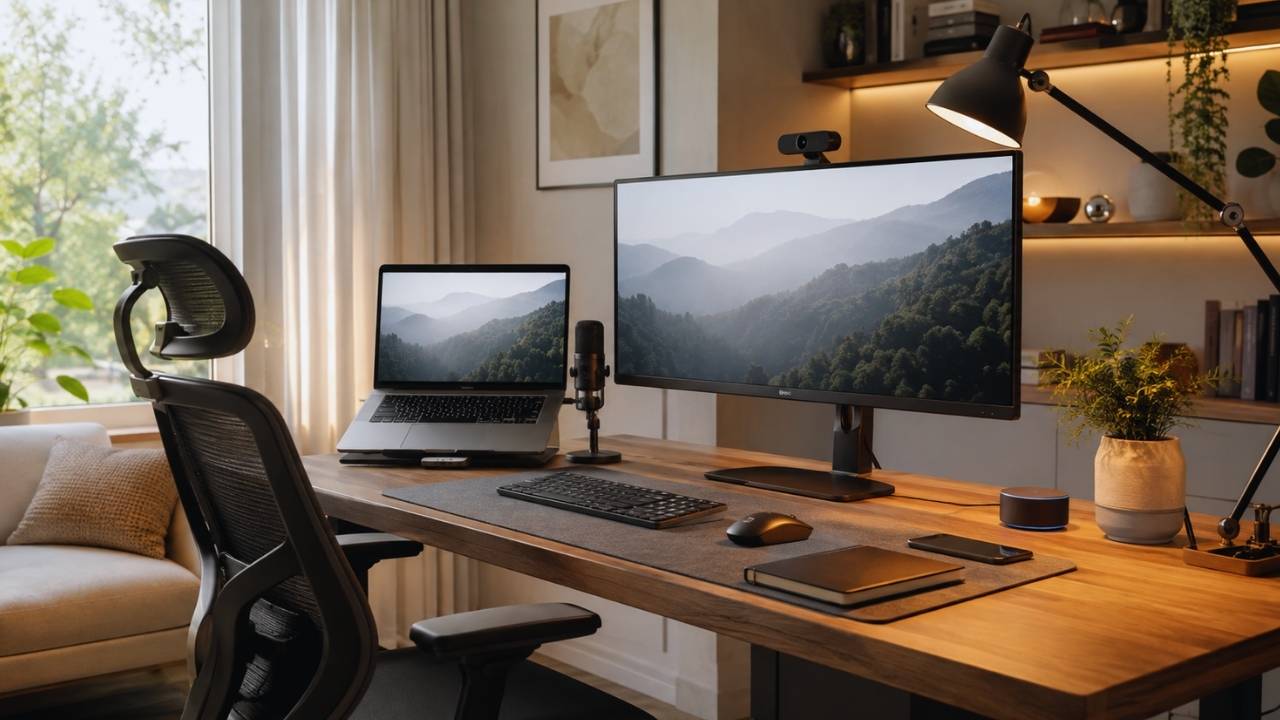
Working from the kitchen island might have cut it a few years ago. Today? Not a chance. We expect a lot more from our workspaces. If you spend eight hours a day staring at a screen, your physical environment dictates how you feel, how much you get done, and whether your back screams at you by five o’clock.
Dialing in your home office setup in 2026 isn’t a luxury anymore. It’s a strict necessity if you want to build a sustainable remote career. I remember when I finally ditched my rigid wooden dining chair for a proper ergonomic setup. My spine practically sighed in relief. The daily mid-afternoon brain fog faded. I stopped taking breaks just to stretch out tension-headaches. You don’t need to drop thousands of dollars to get there.
But you do need to make smart, targeted upgrades based on what actually works, not just what looks cool on social media. This guide breaks down exactly what you need to build a workspace that works for you. We back this up with the latest 2026 data on physical health and productivity. Let’s cover everything from the right chair and desk to the tech that keeps you connected without a mess of cables.
Why Your Home Office Setup 2026 Dictates Your Success
Remote and hybrid work are firmly here to stay, and the statistics back this up completely. According to recent global workforce data from 2026, approximately 27 percent of full-time employees worldwide work fully remote, while another 52 percent engage in hybrid roles [INDEX]. Because companies trust us to deliver from anywhere, the job of building a healthy workspace falls entirely on our shoulders. A thrown-together workspace creates terrible posture. Hunching over a laptop screen forces your neck forward, and sitting in a chair with zero support wrecks your lower back.
Over time, these small daily stresses turn into repetitive strain injuries and lost focus. Upgrading your gear protects your body. It also protects your paycheck. Workplace overexertion and awkward postures cost billions of dollars a year in medical expenses and lost wages. In fact, a recent university study showed nearly 65 percent of remote workers reported new physical health issues when they transitioned to poor home setups [INDEX]. Before you buy anything, figure out what part of your current setup causes the most friction. Does your neck hurt? Fix your monitor placement. Do your wrists ache? Look at your keyboard. Fix the biggest problem first.
|
Setup Mismatch |
Likely Physical Symptom |
First Upgrade to Consider |
Impact on Daily Work |
|
Laptop screen too low |
Neck pain, tension headaches |
Laptop stand or external monitor |
Relieves cervical spine pressure |
|
Flat, standard keyboard |
Wrist pain, carpal tunnel |
Split or curved ergonomic keyboard |
Keeps wrists perfectly neutral |
|
Dining or rigid chair |
Lower back ache, sciatica |
Ergonomic chair with lumbar support |
Prevents slouching and fatigue |
|
Feet dangling off floor |
Numbness in legs, poor circulation |
Stable footrest or lower desk |
Restores normal blood flow |
Ergonomic Chairs: The Foundation of Spine Health
Let’s talk about the most important piece of furniture in your house: your chair. If you still sit on a kitchen stool, stop reading this and go shop for an office chair immediately. It makes the biggest impact on your daily comfort. A great ergonomic chair adapts to your body. You should never have to adapt to it. First, look for an adjustable seat height. Your feet must rest flat on the floor with your thighs parallel to the ground. Next, check the backrest. It needs dynamic lumbar support to naturally fill the curve of your lower back. When you sit in a chair with proper lumbar support, your lower back muscles do significantly less work to hold you upright.
Breathable mesh backs are the gold standard right now. They keep you cool when you’re stuck in back-to-back meetings. Armrests matter a lot, too. They should adjust up and down so your forearms sit at a 90-degree angle when typing. If your armrests sit too high, you shrug your shoulders. If they block you from pulling close to your desk, take them off entirely. Don’t forget the seat pan depth. You want about two fingers of space between the back of your knees and the edge of the seat. If the seat is too long, it cuts off circulation to your legs.
|
Chair Feature |
Why You Need It |
Impact on Your Body |
2026 Buying Tip |
|
Adjustable Seat Height |
Keeps feet flat, thighs parallel |
Prevents leg numbness and poor blood flow |
Look for heavy-duty gas cylinders |
|
Dynamic Lumbar Support |
Maintains the spine’s natural curve |
Lowers back muscle exertion dramatically |
Test for depth and height adjustability |
|
Adjustable Armrests |
Supports forearms at 90 degrees |
Prevents shoulder shrugging and neck tension |
Ensure they pivot inward for typing |
|
Seat Pan Depth Adjust |
Supports thighs without hitting knees |
Stops you from constantly shifting around |
Crucial for users under 5’4″ or over 6’2″ |
Sit-Stand Desks and the Power of Movement
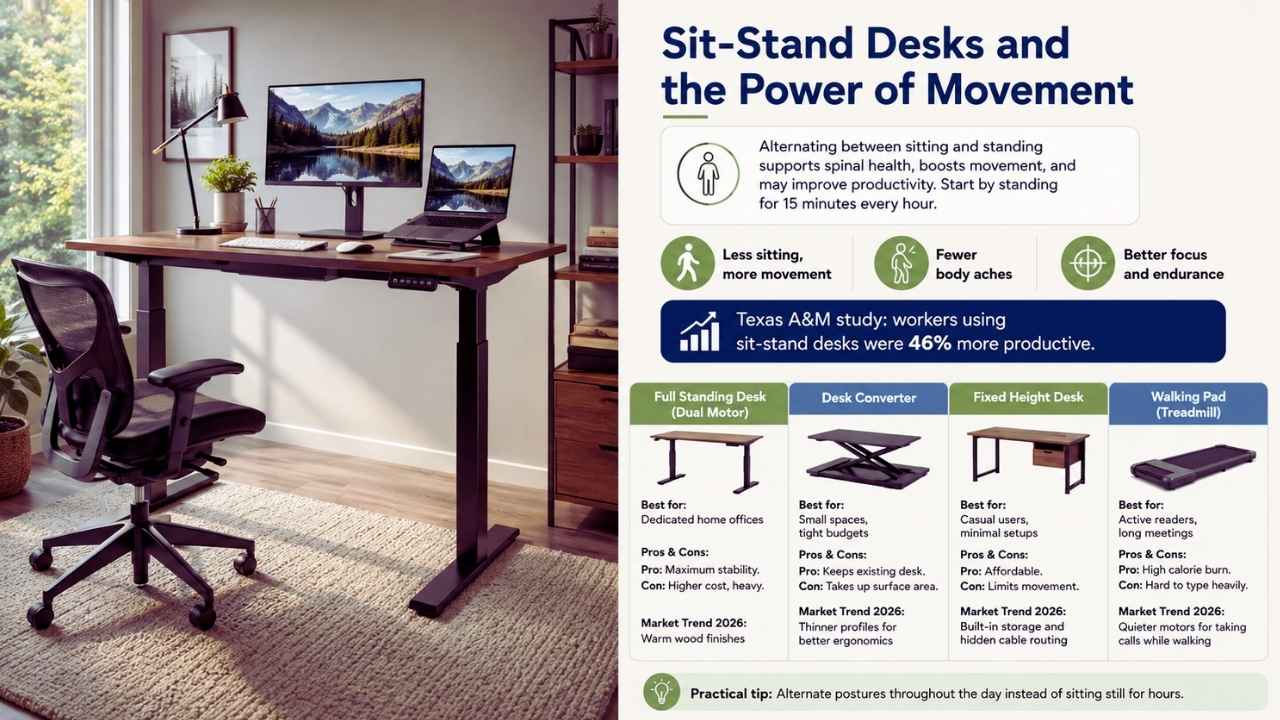
The sit-stand movement isn’t a passing trend. It’s a proven health booster. Sitting entirely still for eight hours compresses your spinal discs and slows your metabolism. Alternating between sitting and standing cuts down on cardiovascular risks and helps you burn extra calories without trying. More importantly, standing makes you faster at your job. Researchers at the Texas A&M Health Science Center looked at call center workers and found that employees who used sit-stand desks were 46 percent more productive than those at traditional desks.
The workers with standing desks felt fewer body aches. That physical relief translated directly to better mental endurance. If you have the cash, a full height-adjustable standing desk is a massive upgrade for your home office setup 2026. Look for dual-motor models. They lift heavy tech setups smoothly. If you lack space, a sturdy desk converter that sits right on top of your existing table works perfectly. The goal is to alternate postures. Try standing for just 15 minutes every hour. You’ll feel the difference immediately.
|
Desk Type |
Best For |
Pros & Cons |
Market Trend 2026 |
|
Full Standing Desk (Dual Motor) |
Dedicated home offices |
Pro: Maximum stability. Con: Higher cost, heavy. |
Integration of warm wood finishes |
|
Desk Converter |
Small spaces, tight budgets |
Pro: Keeps existing desk. Con: Takes up surface area. |
Thinner profiles for better ergonomics |
|
Fixed Height Desk |
Casual users, minimal setups |
Pro: Cheap. Con: Limits movement. |
Built-in storage and hidden cable routing |
|
Walking Pad (Treadmill) |
Active readers, long meetings |
Pro: High calorie burn. Con: Hard to type heavily. |
Quieter motors for taking calls while walking |
Screens and Sightlines: Dual vs. Ultrawide Monitors
Working straight from a laptop screen is a fast track to severe neck pain. You constantly look down, creating tension that burns right into your shoulders. An external monitor lets you keep your screen exactly where it belongs: right at eye level. When planning your home office setup for 2026, you usually face a big choice between dual monitors or a single ultrawide screen. It comes down to how your brain processes tasks. Dual monitors give you a physical break between windows. You can keep your chat apps open on one side and dedicate the other screen to deep work.
This setup dominates in finance, programming, and marketing. An ultrawide display gives you one giant, seamless canvas. You get zero bezel gaps, creating a smooth workflow for video editing, graphic design, or massive spreadsheets. Ultrawides also look much cleaner on a desk because you only deal with one power cable. Whatever you choose, buy a gas-spring monitor arm. Factory stands take up too much space and rarely sit high enough. A monitor arm clamps to the back of your desk, freeing up space underneath and letting you easily pull or tilt your screen.
Read Also: How to Work Remotely from Anywhere: Digital Nomad Guide 2026
|
Screen Setup |
Ideal User Profile |
Key Benefit |
Ergonomic Advantage |
|
Single 27″ (1440p) |
Writers, casual multitaskers |
Clean desk, budget-friendly |
Easy to center perfectly in your vision |
|
Dual 27″ Monitors |
Marketers, project managers |
Natural separation for high multitasking |
Reduces constant window switching |
|
34″ Ultrawide |
Video editors, designers |
Seamless timeline, zero bezels |
Matches natural peripheral vision curve |
|
Ultrawide + Vertical |
Developers, data analysts |
Perfect for code and chat feeds |
Limits neck rotation for long documents |
Keyboards and Mice That Eliminate Wrist Pain
If your wrists throb at the end of the day, blame your flat keyboard. Standard keyboards force your wrists to bend outward at weird angles, completely unnatural for your anatomy. Ergonomic keyboards fix this problem entirely. They curve the layout or split the board entirely down the middle. This keeps your wrists straight and relaxed. Pair your split keyboard with a vertical mouse. A normal mouse makes your hand lay completely flat, which twists the bones in your forearm. A vertical mouse forces your hand into a natural handshake position.
This simple rotation removes tension from your forearm and shoulder. I’ll be honest: it feels really weird for the first two days. But the relief is so immediate that you’ll never go back. Trackballs also stay incredibly popular for people with tight desk space or severe repetitive strain injuries. Because you only move your thumb to control the cursor, your wrist stays entirely still all day long. Investing in these input devices is the cheapest way to upgrade your home office setup 2026 while seeing the biggest reduction in daily pain.
|
Input Device |
The Problem it Solves |
Top Feature to Look For |
Adjustment Period |
|
Split Keyboard |
Bending wrists outward (ulnar deviation) |
Cushioned wrist rest, adjustable tenting |
1 to 2 weeks for touch typing |
|
Vertical Mouse |
Twisting the forearm flat (pronation) |
57-degree vertical angle, extra buttons |
2 to 3 days |
|
Trackball Mouse |
Repetitive wrist swiping and shoulder movement |
Thumb-operated ball, heavy base |
3 to 5 days |
|
Desk Pad |
Hard desk edges pressing into arms |
Soft felt, leather material, anti-slip back |
Immediate comfort |
Lighting, Cable Management, and Acoustics
A productive workspace blends into your home. It shouldn’t look like a messy server room. Clutter ruins your focus. If your desk looks like a snake pit of charging cables, grab a docking station. A Thunderbolt 4 or 5 hub lets you plug your monitors, keyboard, mouse, and power supply into your laptop with just one single cable. Use a cheap under-desk cable tray to hide power strips. Lighting hits your energy levels hard. Overhead room lighting causes screen glare and eye fatigue. Position your desk perpendicular to a window. You get natural light without the sun washing out your screen.
For your desk, buy a monitor light bar. It lights up your desk perfectly without shining on the screen itself. Choose one with adjustable color temperatures. Cooler light keeps you alert in the morning. Warmer light gives your eyes a break in the evening. Think about the sound in your room, too. Hardwood floors and bare walls bounce sound around. This creates an annoying echo on virtual calls. Acoustic wall panels or a thick rug will deaden the sound and make your voice sound incredibly sharp.
|
Environmental Tool |
Best Use Case |
Impact on Focus |
2026 Design Trend |
|
Under-desk Cable Tray |
Hiding power strips and wires |
Eliminates visual mess, lowers stress |
Seamless tech disappearance |
|
Monitor Light Bar |
Lighting the desk without glare |
Stops eye fatigue during dark afternoons |
Smart sync with daylight patterns |
|
Noise-Canceling Headphones |
Blocking out street traffic |
Protects deep work, ensures clear audio |
Lighter materials for all-day wear |
|
Acoustic Wall Panels |
Rooms with hardwood floors |
Deadens echo for professional calls |
Wood-slat designs mimicking natural texture |
Essential Accessories to Complete the Experience
When you nail down the big furniture in your home office setup in 2026, the small accessories smooth out your day. Don’t plug thousands of dollars of gear straight into the wall. Buy a dedicated, high-joule surge protector. This simple fix protects your expensive monitors and standing desk motors from frying during a bad storm. Dropped virtual meetings drive everyone crazy. If your office sits far from your main Wi-Fi router, a Wi-Fi 6 or Wi-Fi 7 mesh system fixes the problem permanently.
It keeps your connection fast and stable all day long. Laptop cameras have improved, sure. But a dedicated 4K webcam positioned at eye level makes a massive difference. Standalone cameras handle low-light rooms way better than tiny laptop sensors. You avoid grainy video feeds and unflattering angles. Another great addition is a smart plug system. Smart plugs let you schedule when your desk powers down, ensuring you never leave your monitors running all night. These small tech upgrades transform an average desk into a professional command center.
|
Accessory |
Problem it Solves |
Why It Matters |
Setup Priority |
|
Wi-Fi 6/7 Mesh Router |
Dead zones and dropped calls |
Handles heavy bandwidth smoothly |
High |
|
4K Webcam |
Poor lighting, weird angles |
Processes low-light beautifully |
Medium |
|
High-Joule Surge Protector |
Gear damage from power spikes |
Protects expensive equipment from frying |
High |
|
Smart Plugs |
Forgetting to turn off tech |
Allows scheduled and automated power-downs |
Low |
Final Thoughts
Building the perfect workspace takes time. The best home office setup in 2026 is all about listening to your body. You want your technology to get entirely out of your way. Start by fixing your posture with a highly supportive chair. Get those screens up to eye level. Hide the cables that distract you.
When you build your workspace with clear intention, you’ll find it infinitely easier to log in, crush your work, and actually walk away when the day ends. Your physical health and your daily productivity are directly tied to the tools you use. Invest in yourself.
Frequently Asked Questions (FAQs) About Home Office Setup 2026
What desk depth do I actually need for an ultrawide monitor?
A major mistake people make is buying a massive screen for a shallow desk. For a 34-inch ultrawide, you need a minimum desk depth of 30 inches (about 75cm). Anything shallower places the screen too close to your face, causing severe eye strain and neck craning.
Are walking pads worth it for remote work, and can you actually type on them?
Walking pads are excellent for getting steps in during long meetings or while reading. However, they should be added only after your basic ergonomic chair and desk setup are dialed in. Most users find heavy, precision typing difficult at speeds over 1.5 mph. Treat them as a supplemental tool, not a replacement for a great chair.
How do I manage eye strain if I cannot change my room lighting?
Follow the 20-20-20 rule. Every 20 minutes, look at something 20 feet away for exactly 20 seconds. Beyond that, bias lighting works wonders. Sticking a warm LED strip on the back of your monitor reduces the harsh contrast between a bright screen and a dark wall behind it. This vastly reduces eye fatigue.
What should I prioritize if I have a very tight budget?
Always start with your chair. It makes the biggest impact on your physical health and prevents costly medical issues down the line. Next, buy an inexpensive laptop stand and a basic external keyboard and mouse. This lets you raise your screen to eye level without breaking the bank. You can upgrade to standing desks and ultrawide monitors later.